
T4 is a templating engine inside of Visual Studio that lets you generate, well, text. Since T4 has no editor goodies in Visual Studio the Tangible T4 Editor is a good way to get some of the goodies back. But if you’re using the “dark” theme in Visual Studio the Tangible T4 Editor needs a color change.
Working with T4 templates can be a bit tedious. What’s T4 you ask? T4 is the Text Template Transformation Toolkit that ships with Visual Studio. T4 allows you generate text within Visual Studio. This can be code, sql, text files or whatever. <YodaVoice>Very powerful it can be.</YodaVoice> But dealing with T4 templates out of the box can be annoying since there is no IntelliSense, syntax highlighting or debugging. You might as well be using Notepad. One of the easiest ways to get some of those features back, for free, is to use the Tangible T4 Editor.
The free version of the Tangible T4 Editor brings you syntax highlighting and some IntelliSense. If you want all of the IntelliSense goodness then you have to buy the Pro version. 🙁 One of the biggest problems that I had right off the bat with the Tangible T4 editor was with the color scheme. See, I’m one of those cool developer types and I use the dark Visual Studio theme. So I install it and this happened:
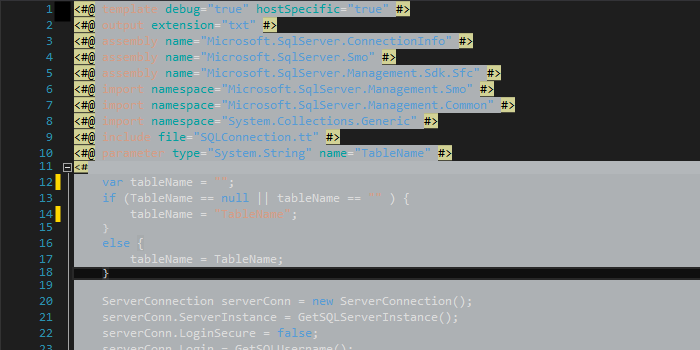
Can you work like this? Nope. It looks great in the “blue” them but like hell in the “dark”. So we need to fix this. Luckily Tangible has set a color in the options to fix it. Go to Tools > Options and this dialog comes up.
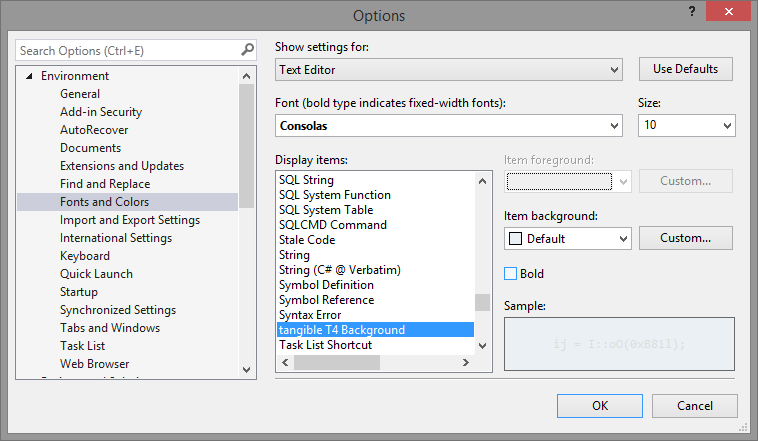
Select Environment > Fonts and Colors from the list and then select “tangilbe T4 Background” in the “Display items” list box. Then click the “Custom” button in the “Item background” section. This dialog will come up. (Yes, dialog over a dialog)
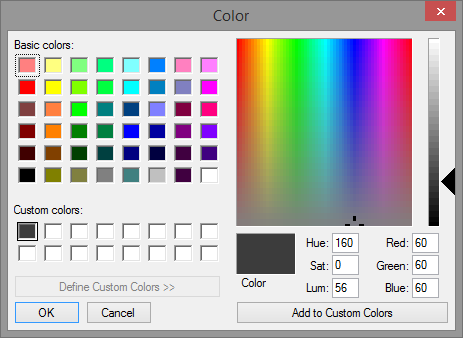
You can choose any color you like but I settled on Red: 60 Green: 60 Blue: 60. It’s a nice dark grey and you get this:
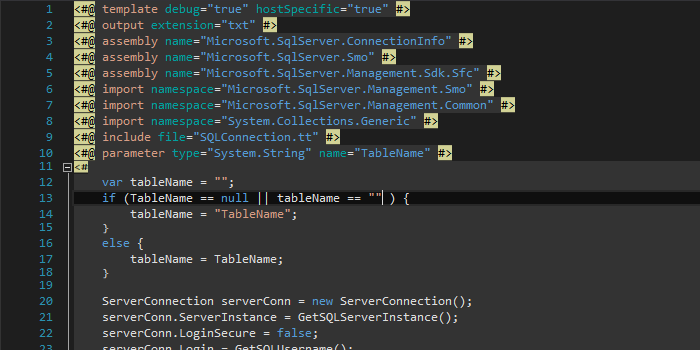
Now sanity has been restored and work can continue. I’m not sure why T4 has been treated like the red-headed stepchild of Visual Studio. It’s quirky but has some rich features that can be useful in appropriate situations. Until Microsoft takes T4 out of the corner we’re stuck trying to find third party alternatives so that we can use it effectively.



Leave a Reply